
| SAS® Interactive Schedule Viewer Help | |
|
Introduction Main Tasks
Menu Bar Context Menus |
Use the Scroll Bar to ZoomYou can use the scroll bar at the bottom of a chart to control how much of a project is displayed at one time. The following display shows a sample chart and the chart scroll bar. 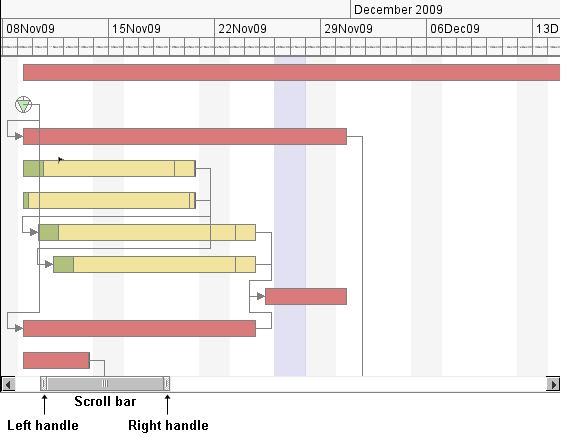 Handles on each end of the scroll bar enable you to zoom in or out from the left or right side of the chart. When you
move your mouse pointer over a handle, the mouse pointer changes to a two-way arrow ( Use the right handle to zoom in or out from the left side of the chart as shown in the following display. 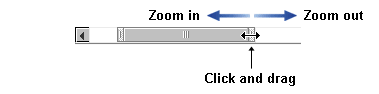 As you drag the handle, the scroll bar resizes from the right, and more or less project information is displayed on the right side of the chart while the date on the left edge remains stationary. Use the left handle to zoom in or out from the right side of the chart as shown in the following display. 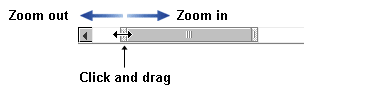 As you drag the handle, the scroll bar resizes from the left, and more or less project information is displayed on the left side of the chart while the date on the right edge remains stationary. You can fully extend the scroll bar to see the entire project. For example, you can drag the left handle to the far left and the right handle to the far right to see the entire project as shown in the following display. 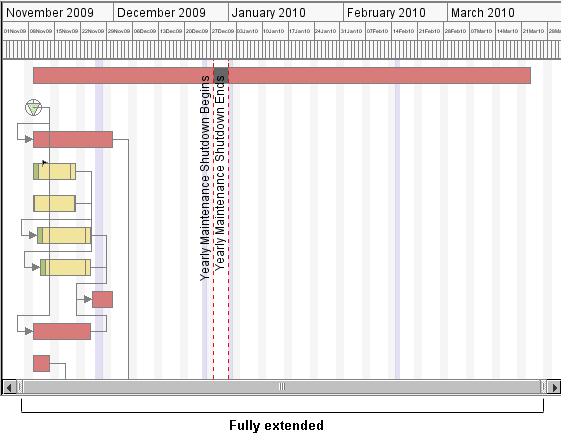 When you use the scroll bar to zoom in or out, the new zoom factor remains in effect only as long as the chart is open. When you close the chart the change is discarded. You cannot use File |
 ). When you see the two-way arrow, you can click on the handle and then drag it left or right to change the zoom factor.
 Save Preferences to save a change to the zoom factor that you made using the scroll bar. To make a permanent change to the zoom factor, use